Part 4 of 26
Finding a lesson
There are more than nineteen hundred lessons in Cogito, in fifty-nine courses. There are two ways to reach the one you want: type what you are looking for, or browse the courses.
If you know what it is called
Tap Search in the menu on the left. A box opens over the page. Type two or more letters and matching lessons appear underneath as you type.
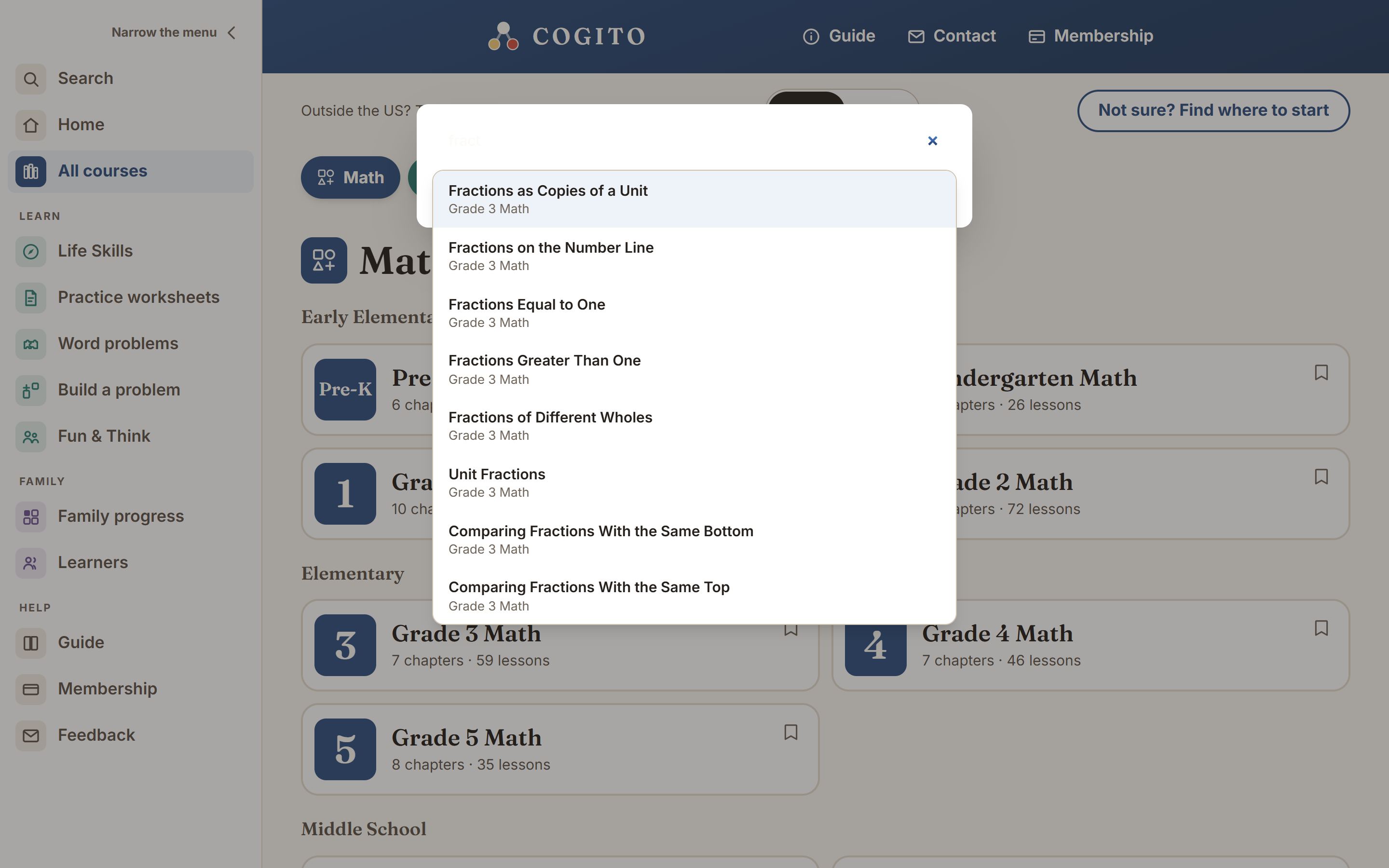
- Tap Search — the magnifying glass, at the top of the menu.
- Type part of what you want — fraction, divide, clock.
- Tap any result to go straight to that lesson.
Once you are signed in, there is a second search box, Search lessons, in the blue bar on the home page. It does exactly the same thing. It is there because that is where people look first.
If you are browsing
Tap All courses in the menu, or Courses in the bar at the top of the home page before you sign in. Every course is on one long page, as a card. Once you are signed in, the same cards are also on the home page, under Today.
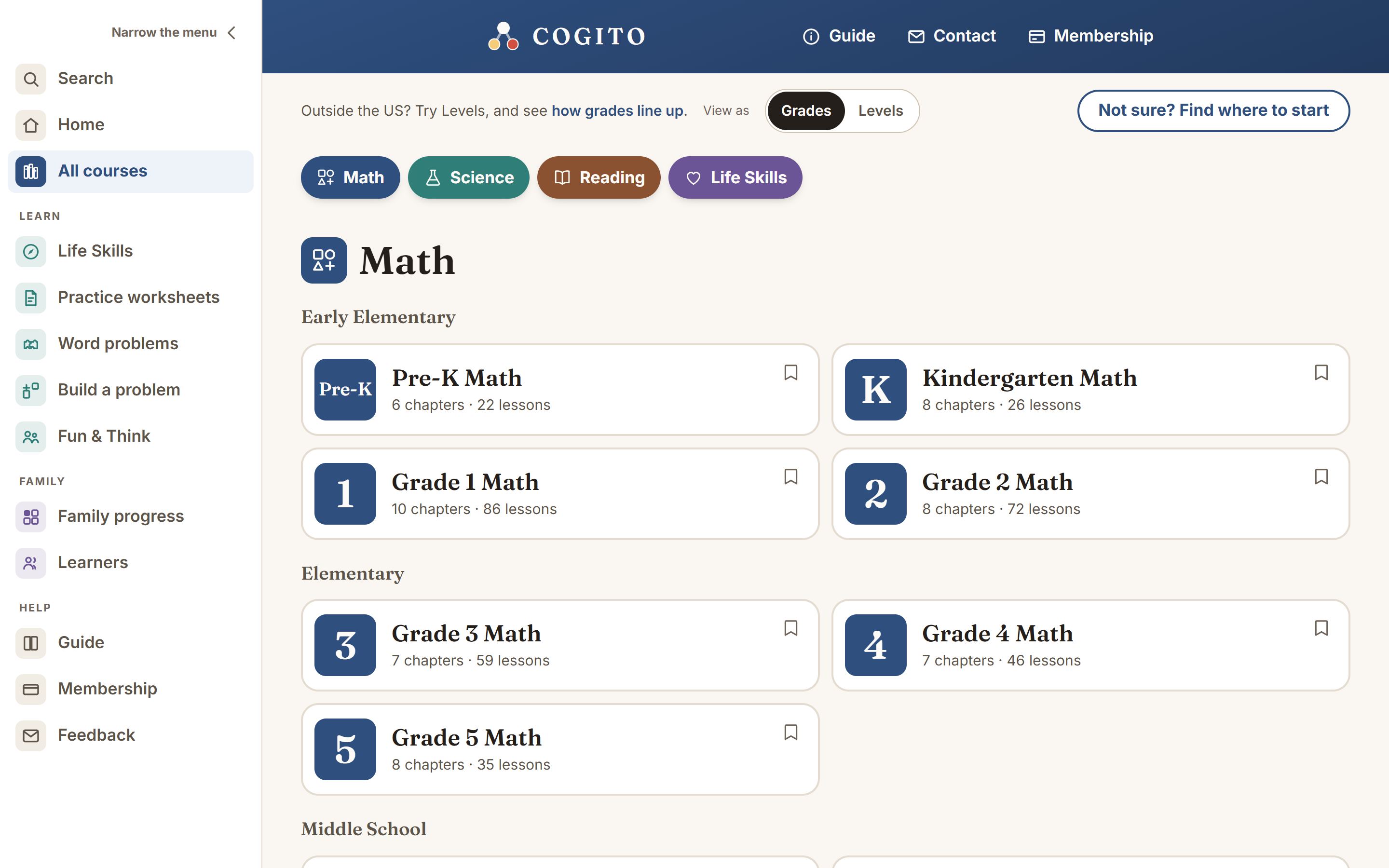
- Subject. The colored buttons at the top, Math, Science, Reading and Life Skills, jump to that subject. They stay at the top of the screen as you scroll, so another subject is always one tap away.
- Stage. Inside each subject the courses are grouped by roughly how old your child is:
Early Elementary is pre-K to Grade 2.
Elementary is Grades 3 to 5.
Middle School is Grades 6 to 8.
High School is the named courses, such as Algebra 1 and Biology.
Math has one more group, International, for families outside the United States. - Course. Each card has the grade in a big colored square, the course name, such as Grade 1 Math, and how many chapters and lessons it has. Lessons your child has finished show as done. Your child’s own grade is marked Your course. Tap the card to open it.
With View as set to Levels at the top of the page, the stages read Levels A to D, Levels E to G, Levels H to J and Beyond Level J, and a course reads Level C Math instead of Grade 1 Math. See Grades and levels for the table.
Inside a course
A course opens on a page of its own. At the top is the way back: All courses, then the subject, then the course name. Under the name is one big button.
- Start lesson 1 if your child has not begun. Once they have, it reads Continue: and the name of the next lesson.
- Below it are the chapters, one per row, with how many lessons each has and how many are done. Tap a chapter to see its lessons.
- A chapter lists its lessons in order, with ✓ Done beside each one finished. Tap a lesson to open it. Where the chapter has a test, the button under the list says Chapter 1 check, with the chapter’s own number.
At the foot of a course is Not sure where to start? Find where to start, which opens the short test described in Finding where to start. The same test is behind Not sure? Find where to start at the top of the All courses page.
Saving a course
There are fifty-nine courses. Once you know which ones your child is working through, you can keep them at the top of the page.
- Tap the bookmark at the top right of a course card. It fills in when the course is saved.
- A row headed Saved appears at the top of the course list. Tap a saved course there to open it.
- Tap the cross beside it, or the bookmark again, to remove it.
On a phone
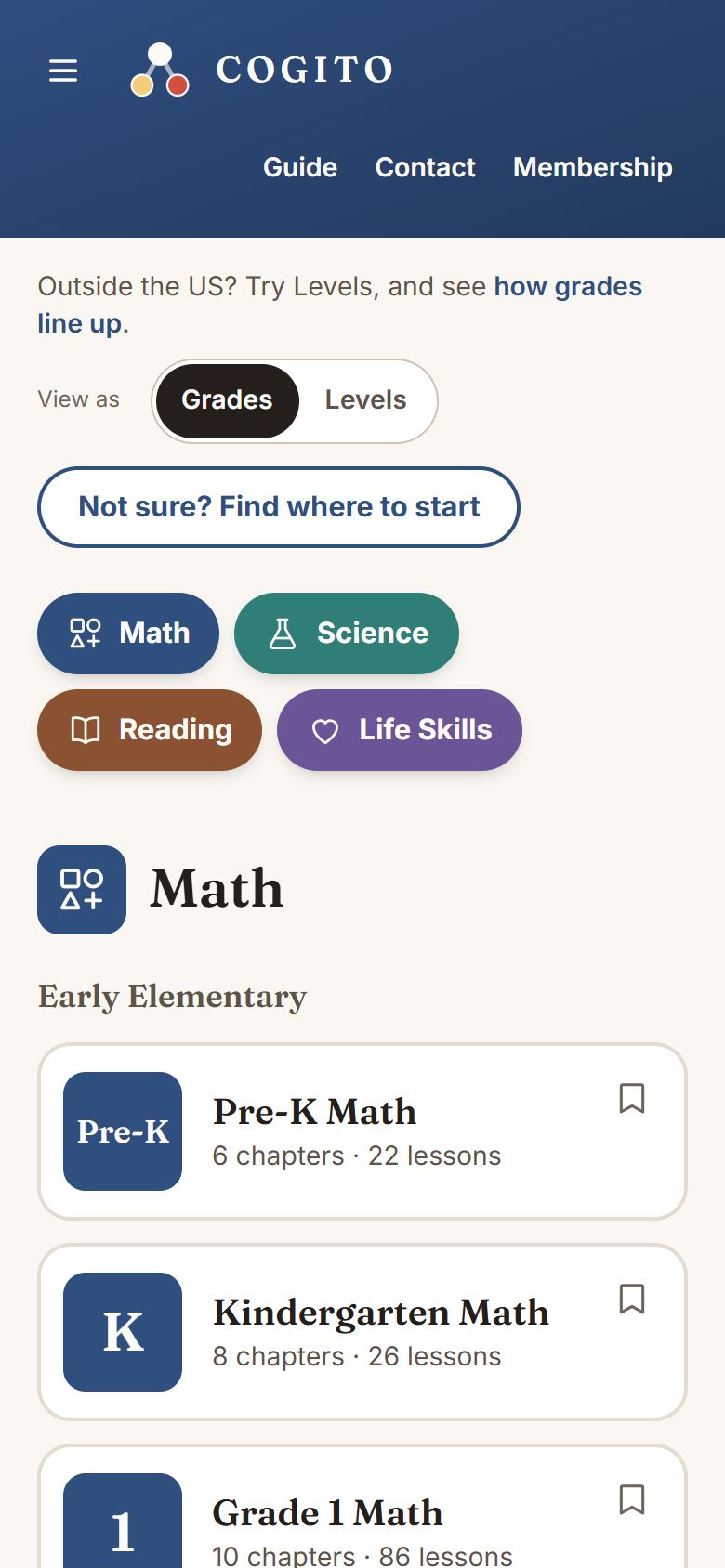
It is the same page on a phone. The cards sit one under another, and the subject buttons stay at the top as you scroll.
Getting back
Tapping COGITO at the top left always returns you to the home page, from anywhere in Cogito. All courses in the menu does the same for the course list.
Inside a lesson, the line at the top reads All courses, then the course, then the chapter. Each one is a link, so getting back to the chapter is one tap. If your child left a lesson part-way, a card saying Carry on where you stopped waits at the top of the All courses page.
What is inside a lesson is a later chapter.