Part 12 of 26
Scratch paper
Math needs somewhere to work. A child carrying a ten in a column sum, or drawing the two groups a word problem describes, used to have to go and find paper — and on a tablet there often is none. Scratch paper is that paper, waiting in the corner of every math lesson. Science and Reading lessons are picture books and do not have it.
Finding it
- Open any math lesson. A Scratch paper button sits in the bottom corner of the screen.
- Tap it and the pad opens over the lesson. Tap the cross to put it away.
- It is on math chapter checks too, while the questions are being asked — which is when most children want it. It is not on the first or the result screen.
What it can do
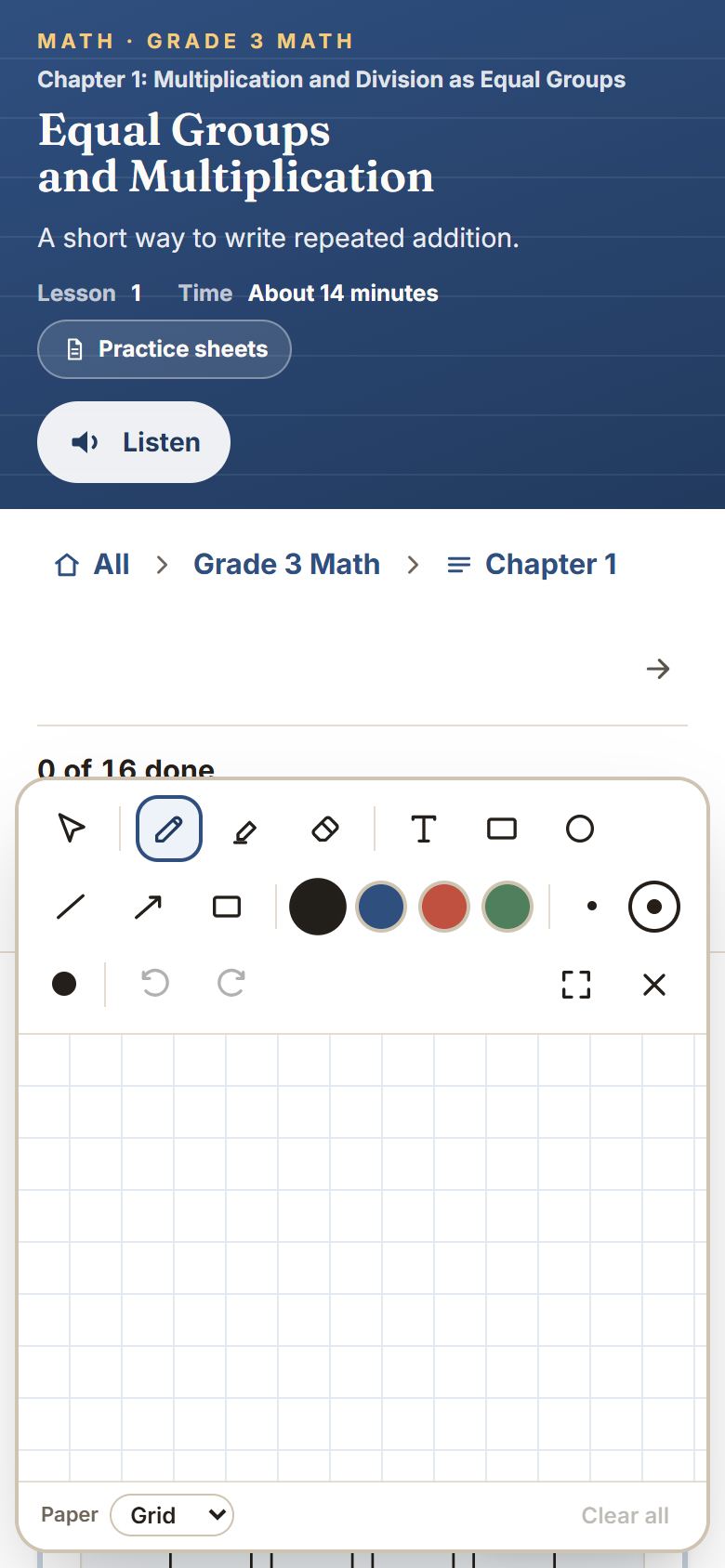
More than a pen. Along the top are a pen, a highlighter and an eraser; four colors; three nib sizes (Fine, Medium, Thick); undo and redo; and a button to make the pad bigger.
- Shapes. A rectangle, a circle, a line and an arrow, dragged out to any size. Holding Shift on a keyboard makes a perfect square or circle. The shading button fills a shape in.
- Text. Tap the Text tool (the T), then tap the paper, and type. Useful for labeling a drawing or writing an answer to keep.
- Moving things. The select tool picks anything up and moves it somewhere else. With something picked up, Edit text retypes text rather than redrawing it, and Delete removes it.
- Paper. Grid, lined or plain, chosen under Paper at the bottom. Grid is the one that makes column arithmetic line up.
It remembers
Working stays put. Close the pad, finish the lesson, come back tomorrow — the drawing is still there, and undo still works. Each lesson and each chapter check has its own page, kept separately for each child. A small dot on the button tells you there is something saved.
On a tablet
If your child has a stylus, the pad knows: pressing harder draws a thicker line, and once it has seen a stylus it stops responding to the palm resting on the screen. A finger works perfectly well too.