Part 2 of 26
The menu on the left
Every screen in Cogito has the same menu. On a computer it runs down the left-hand edge. On a phone it is behind the button with three lines, at the top left.
It is the one thing worth learning first, because everything else in Cogito can be reached from it.
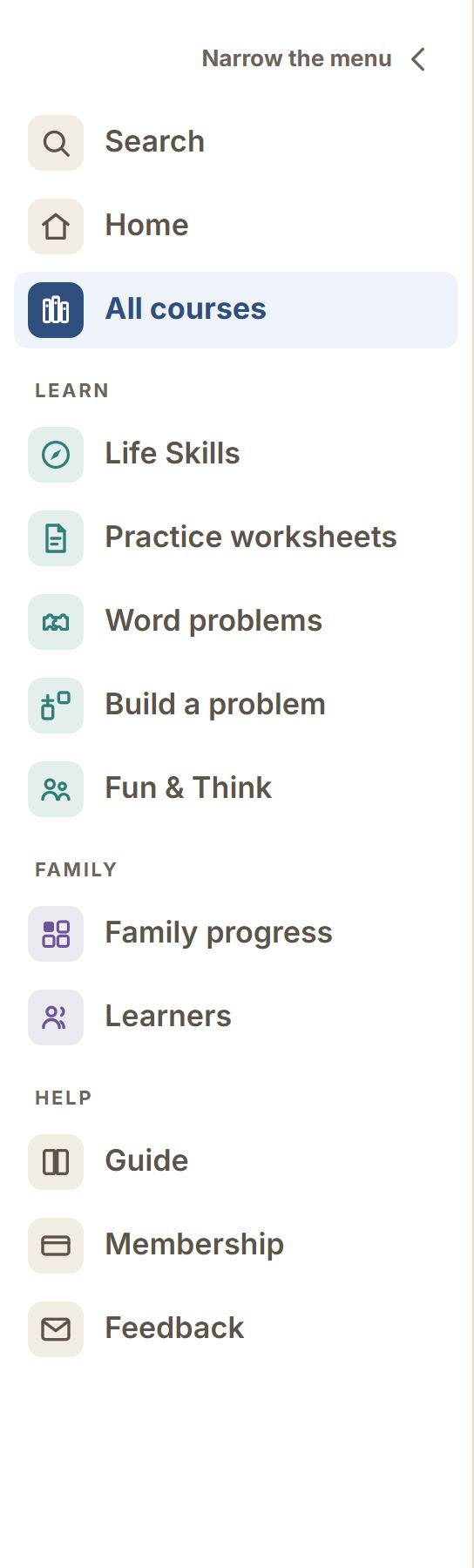
It comes in three groups, and the headings say who each one is for. Learn is what your child opens. Family is where you go. Help is everything else. Above them sit search and the two doors most people want first.
Each item has its icon in a small colored square: teal for Learn, purple for Family, grey for the rest. The page you are on has a solid blue square, so you can always see where you are.
At the top
- Search — type what you are looking for and jump straight to a lesson.
- Home — the first screen, and where today’s one thing to do appears once you are signed in.
- All courses — every course on one page, by subject and grade. Its icon is a row of books.
- Math Lab — pick a math problem, set your own numbers and work it out a step at a time. Its icon is an open notebook. The Math Lab chapter explains it.
- Science Lab — life science, physical science, and Earth and space, in 3D: make a guess, explore, then say what you found. Its icon is a ringed planet. The Science Lab chapter explains it.
Learn — what your child opens
- Life Skills — money, safety, feelings and the rest. Free in full, for everybody.
- Practice worksheets — every printable sheet and answer key, ready for paper.
- Word problems — problems that do not say which method to use, which is the hard and useful part.
- Fun & Think — short games and riddles, most needing no reading at all.
Family — where you go
- Family progress — where each child is, the week, and this week’s letter.
- Learners — the children you have added, if you have added any.
Help
- Guide — this guide.
- Membership — what it costs and what it opens.
- Contact — tell us how Cogito is working out, report something wrong, or just get in touch. A sentence is worth more to us than a score, and corrections to a lesson are the most useful thing you can send.
Making it narrower
The menu shows the words. If you would rather have the room back for the lesson, tap Narrow the menu at the very top of it. The menu shrinks to its icons, which take about a quarter of the width. The arrow in the same place widens it again.

When a lesson is shown one part at a time, the menu steps aside completely and leaves a small Menu tab at the left edge. Tap the tab to bring the menu back for that lesson.
On a phone
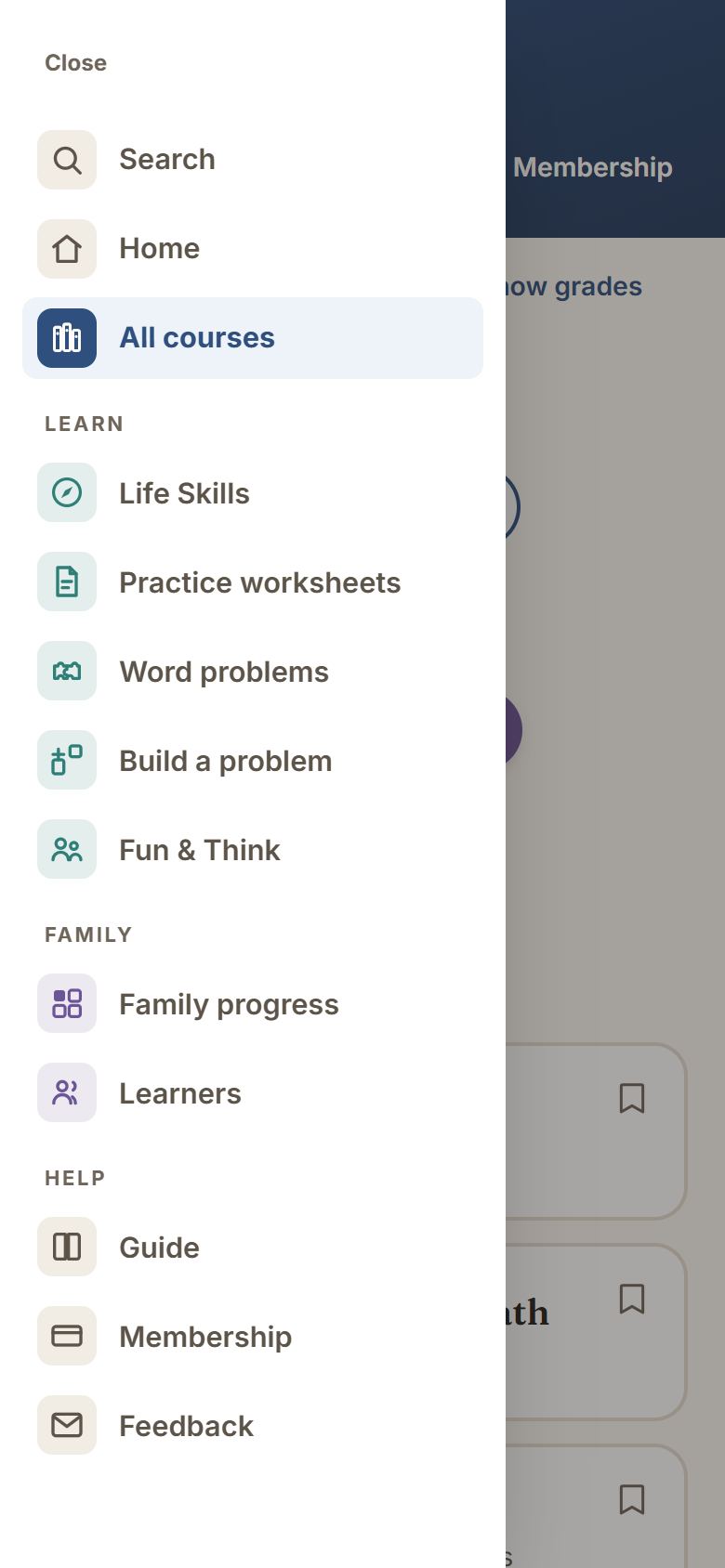
There is no room for a strip beside the page on a phone, so the menu hides behind the button with three lines at the top left. Tap it and the menu slides in over the page. Tap anything in it, tap Close, or tap the page behind it, and it slides away again.
What next
The next chapter walks through the home page from the top down.