Part 26 of 26
When something goes wrong
Almost everything that goes wrong is one of the things below, and almost all of them are fixed in a few seconds.
A page will not load, or says something went wrong
Usually this means the app was updated while you had it open, and your device is still holding the old copy.
- If you see a page saying This page did not load properly or Cogito did not load properly, tap Load a fresh copy. That fixes it properly, where an ordinary refresh often does not.
- If you do not see that page, close the tab completely and open the site again.
A lesson says it needs a membership and I have paid
- Check the blue bar at the top. If it says Sign in rather than a name, you are signed out — that is the whole problem.
- If a name is showing, tap it, then tap Your account. The top of that page says whether everything is free, your membership is active, or your free trial has ended.
- If it says active and a lesson still will not open, tell us and we will sort it out.
I cannot sign in
- Check for a typo in the email address. It is the commonest cause by a wide margin.
- If you originally used Continue with Google, use that again rather than a password. There is no Cogito password on that kind of account.
- Forgotten your password? Tap Forgot your password? on the sign-in screen and check your email.
My child's progress has gone
- Check you are signed in, on the same account. Progress is tied to the account, not to the device.
- Check whose name is in the blue bar. If it is the wrong child, you are looking at another child’s record: tap the name, and under Who is learning? choose the right one.
A chapter check says not passed, but the answers were right
Look at the marks beside each answer. An answer given after opening a hint shows as Right, with help, and those do not count toward passing. That is on purpose: the check measures what your child can do alone. Tap Show all to see every question, the right answer and why, then try the check again another day.
The answer is below zero and there is no minus key
A phone keypad has no minus key. Where an answer can be below zero, there is a +/− key beside the number box. Type the number, then tap it.
The worksheet will not print
- Open the sheet with Worksheet or Practice sheets at the top of the lesson, rather than printing the lesson itself.
- On a phone, use the browser’s share or menu button and choose Print.
- If your printer is not listed, that is between your phone and your printer rather than anything to do with Cogito — but you can save it as a PDF and print it from a computer.
Something is just wrong
A wrong answer marked right, a lesson that makes no sense, a word a child cannot possibly know — please tell us. It is the fastest way these get fixed, and it is not a bother.
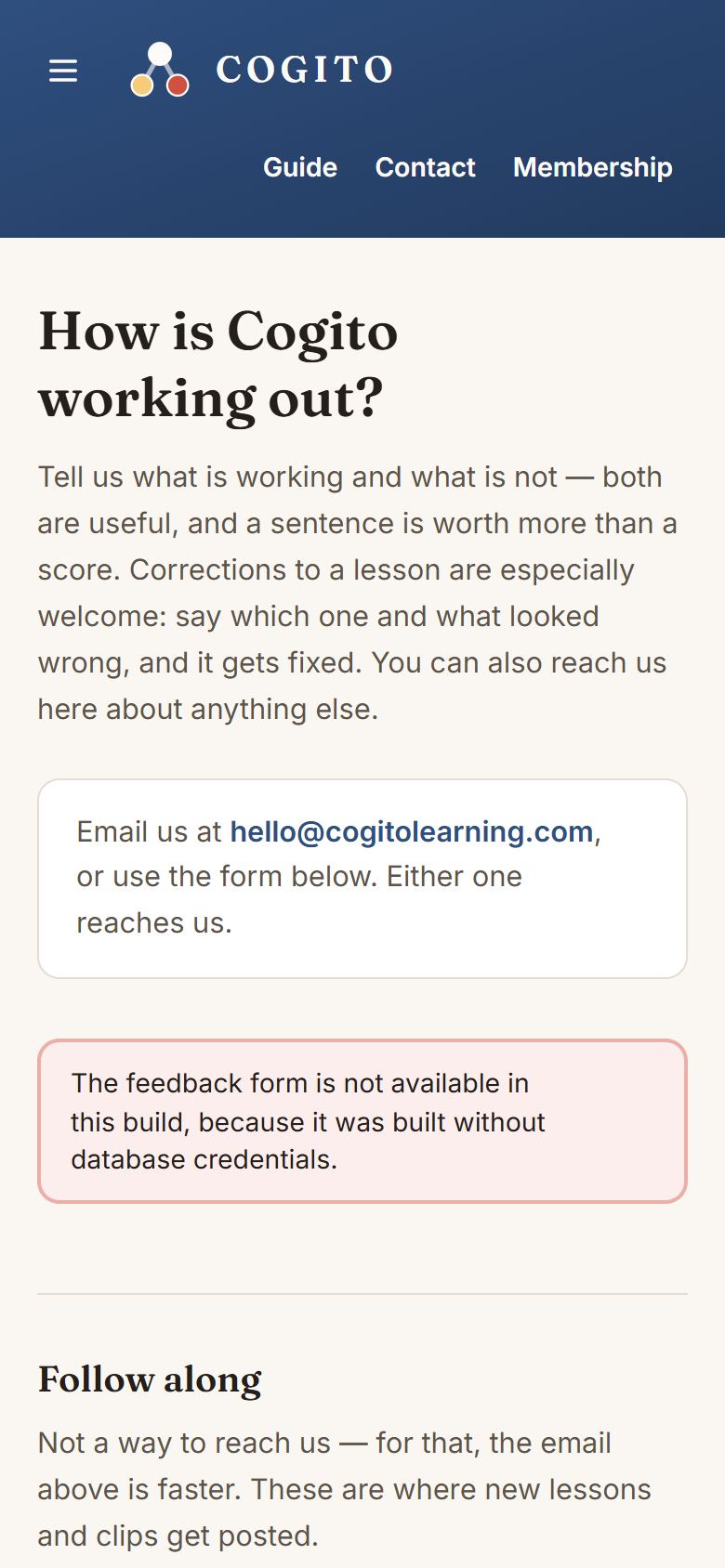
- Tap Contact in the blue bar, or in the footer at the bottom of any page.
- Say which lesson it was, if you can. “Grade 2 math, chapter 3, the second lesson” is plenty.
- Send it. A real person reads these.