Part 3 of 26
The home page
This is the first screen you see. It is a different page before and after you sign in. Before, it shows what Cogito is. After, it shows what your child should do today. Here are both, one piece at a time, from the top down.
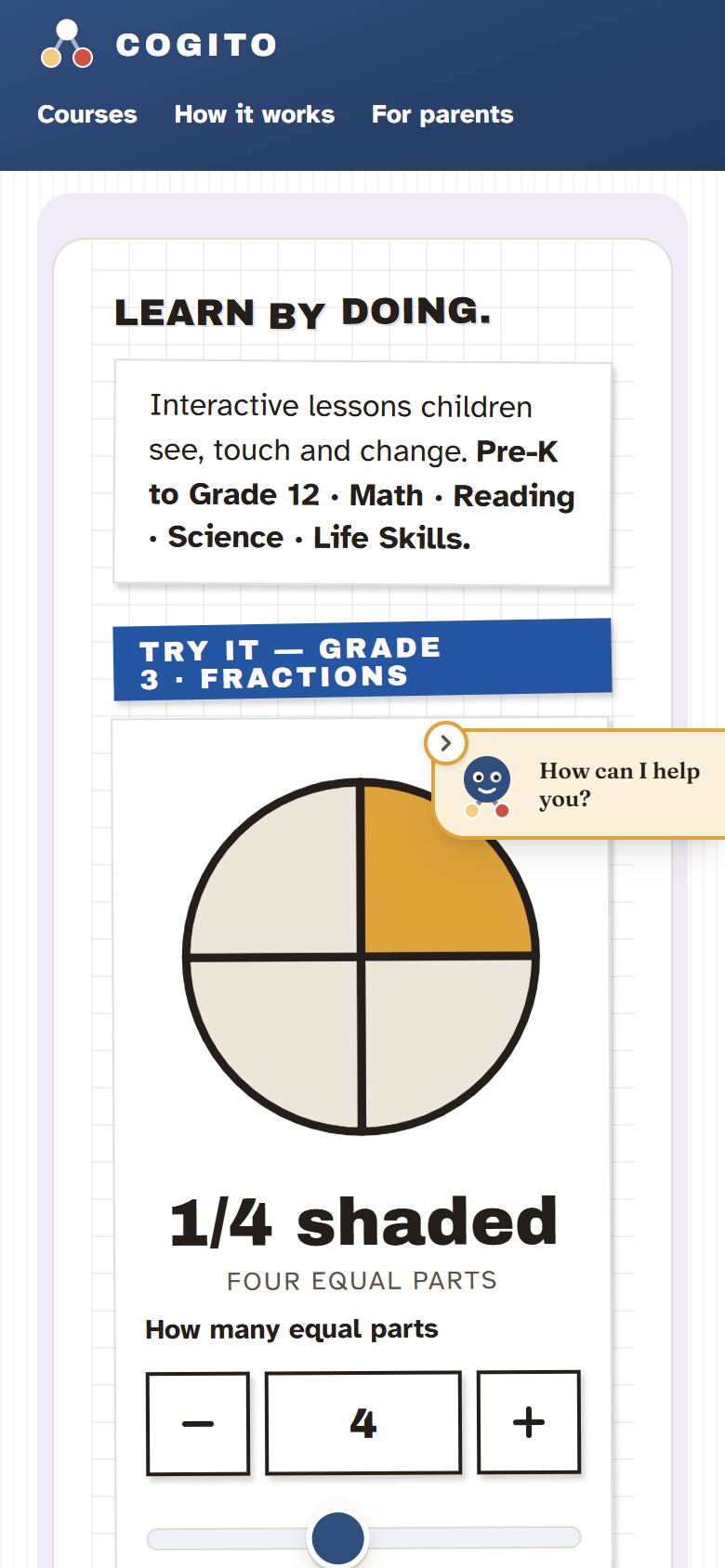
1. The bar at the top
A blue bar runs across the top of the page.

- Courses — every course, on one page.
- Guide opens this guide. For parents opens a page about what Cogito is for and how it teaches.
- Free until December 31 — the yellow badge, on a wider screen. It opens the membership page.
- Sign in — the white button. Sign in, or make an account.
2. Learn by doing
Under the bar is the title, Learn by doing, and a real lesson figure, not a picture of one. It comes from Grade 3, chapter 1.
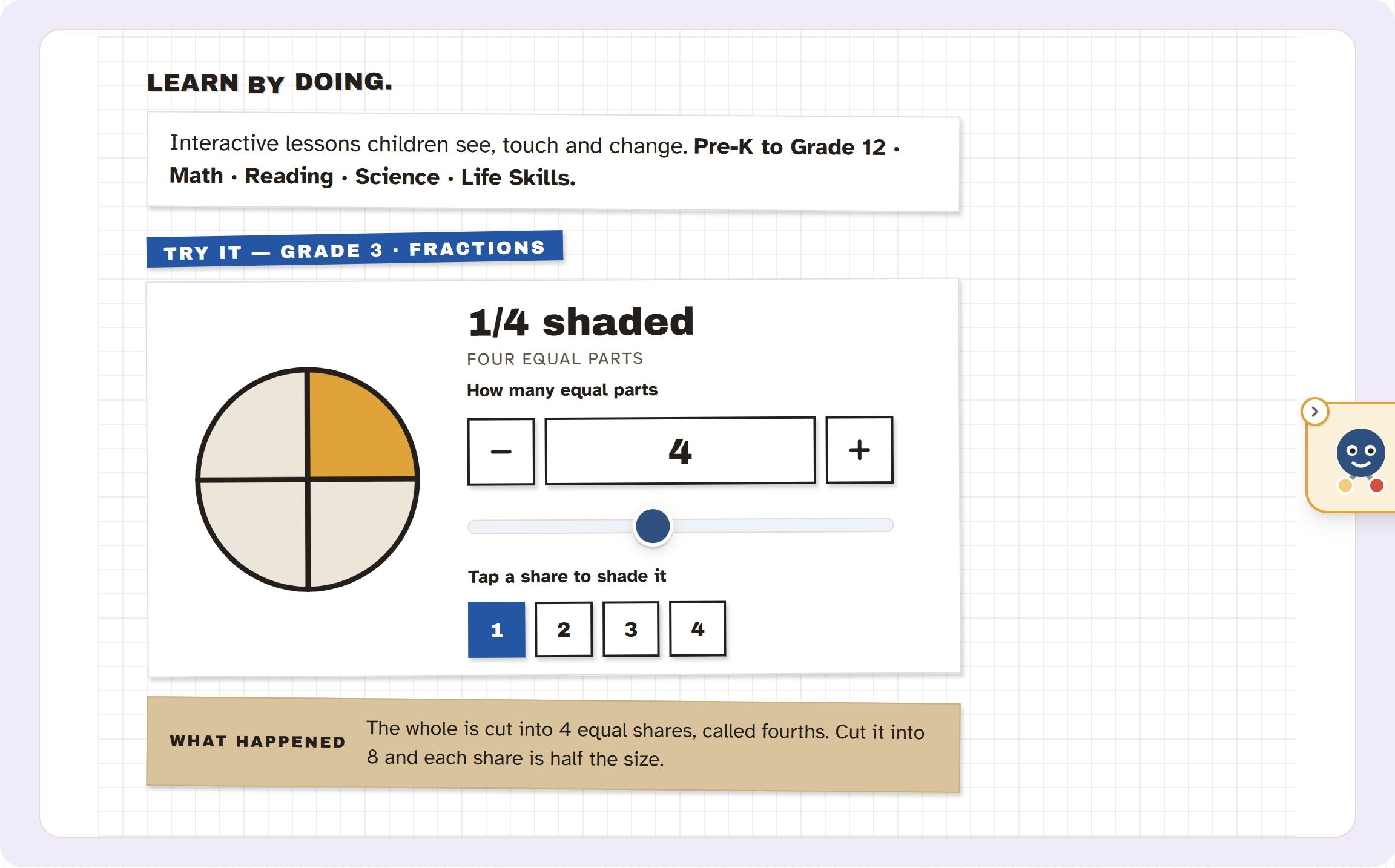
- Under Try it — Grade 3 · Fractions, change the number of equal parts. The circle cuts itself again.
- Tap a part and it is shaded. The fraction underneath follows.
- The brown slip headed What happened says what you just did, and it changes with each move.
3. Written methods
Below it, under Try it — Written methods, is a long division set out the way it is written on paper: 486 divided by 3, from Grade 4. It opens worked out in full, with the same 486 drawn as blocks beside it. Press Start again, then Next step, and it fills one square at a time, with the move written underneath. Show it all jumps to the end.
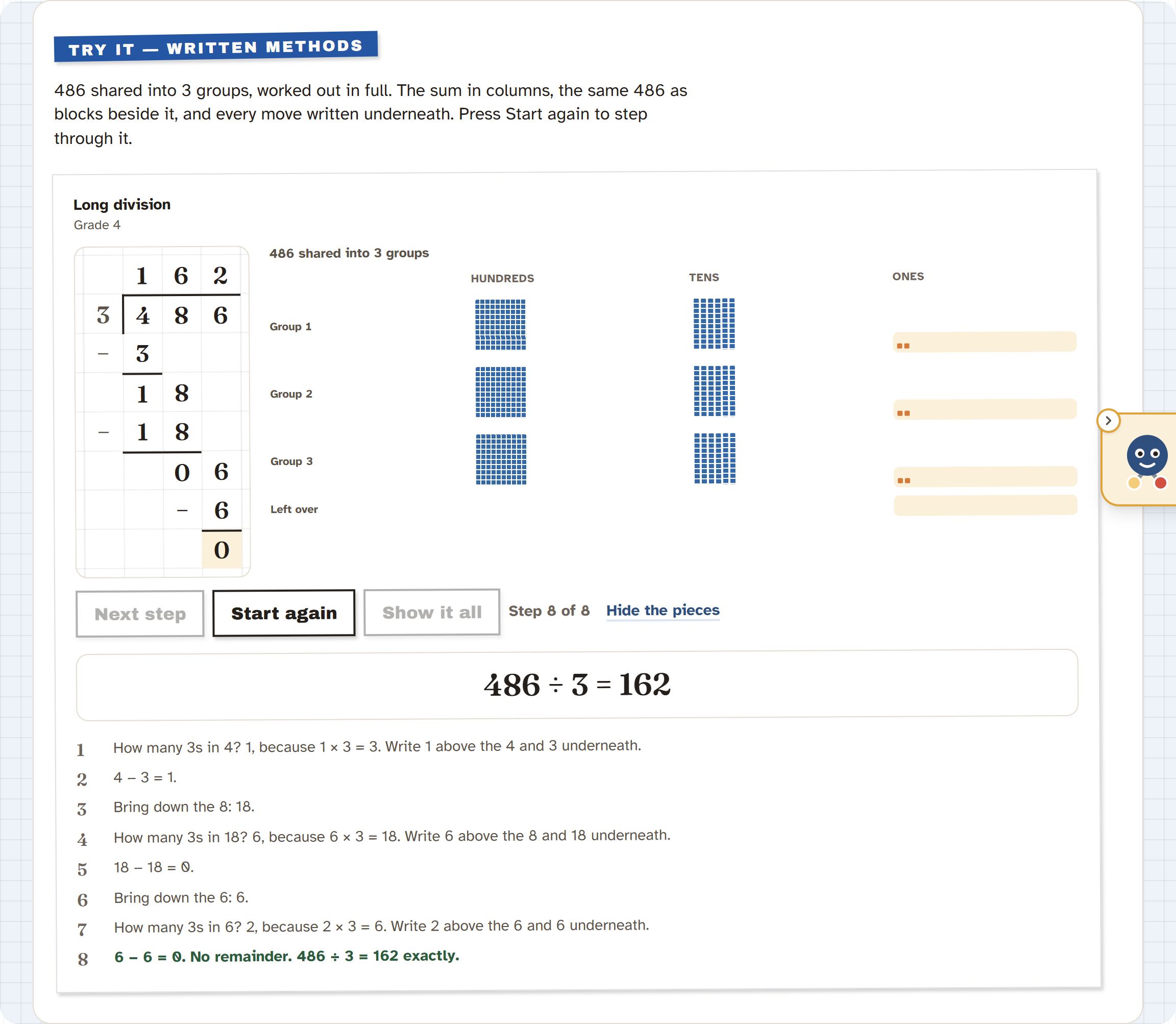
The same boards, with numbers your child can change, are in the chapters that teach adding, taking away, multiplying and dividing on paper.
4. Grades and subjects
Next come two lists: every grade from Pre-K to Grade 12, and the four subjects with how many lessons each holds.
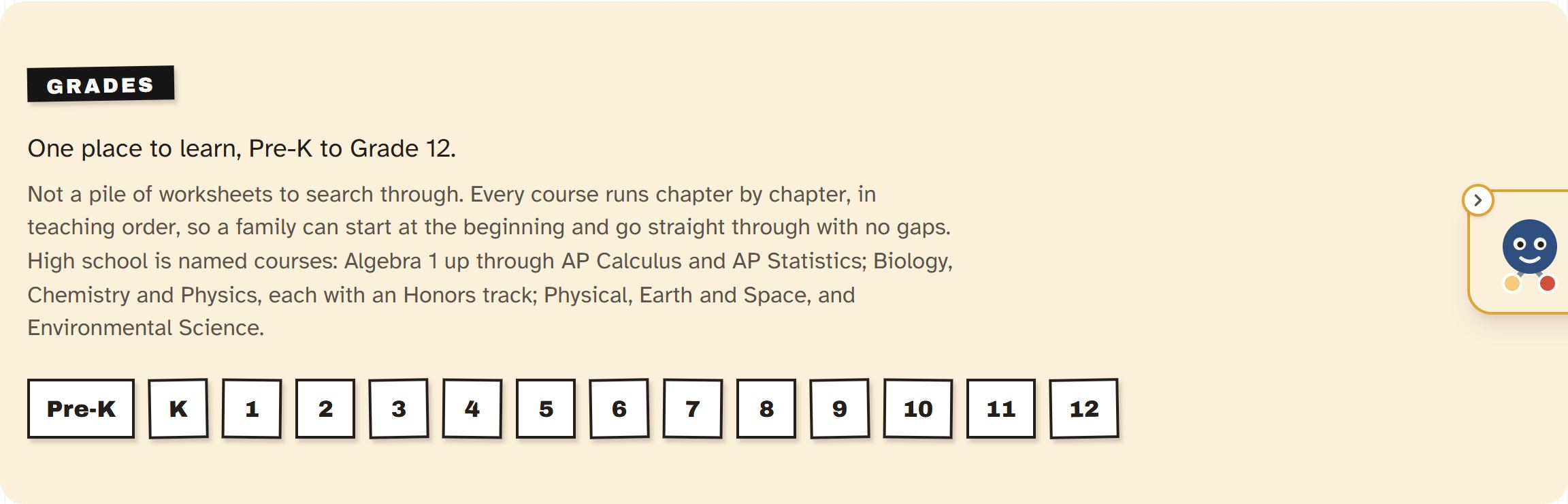
These are the fastest way to see whether your child’s year is covered. Tapping a grade opens that grade’s math course. Tapping Math, Reading or Science opens the course list at that subject, and Life Skills opens the Life Skills page.
5. Two ways to learn
Self is how every family starts: open any lesson, and once it is finished it comes back as short homeworks across the week. Try a lesson opens that Grade 3 lesson. Class based is a small live class once a week, with the homework following it. Until classes open it says Enrollment has not started yet.
6. The rest of the page
Further down, a short section headed Materials not used: no ads, no streaks, no child accounts. They are listed because they are the three things most children’s apps do, and each was left out on purpose.
After it are For parents (the family page, worksheets, word problems, and this guide), Life Skills, the subject that is free in full, and a short close with Try a lesson, Explore by grade or level and Find where to start, which opens the placement test. None of them asks for an account.
7. Once you are signed in
Sign in and the home page changes. The menu appears down the left. The blue bar carries a Search lessons box, and Learners, Guide and Contact. Under it comes your child’s day first, then anything meant for you.
8. Today
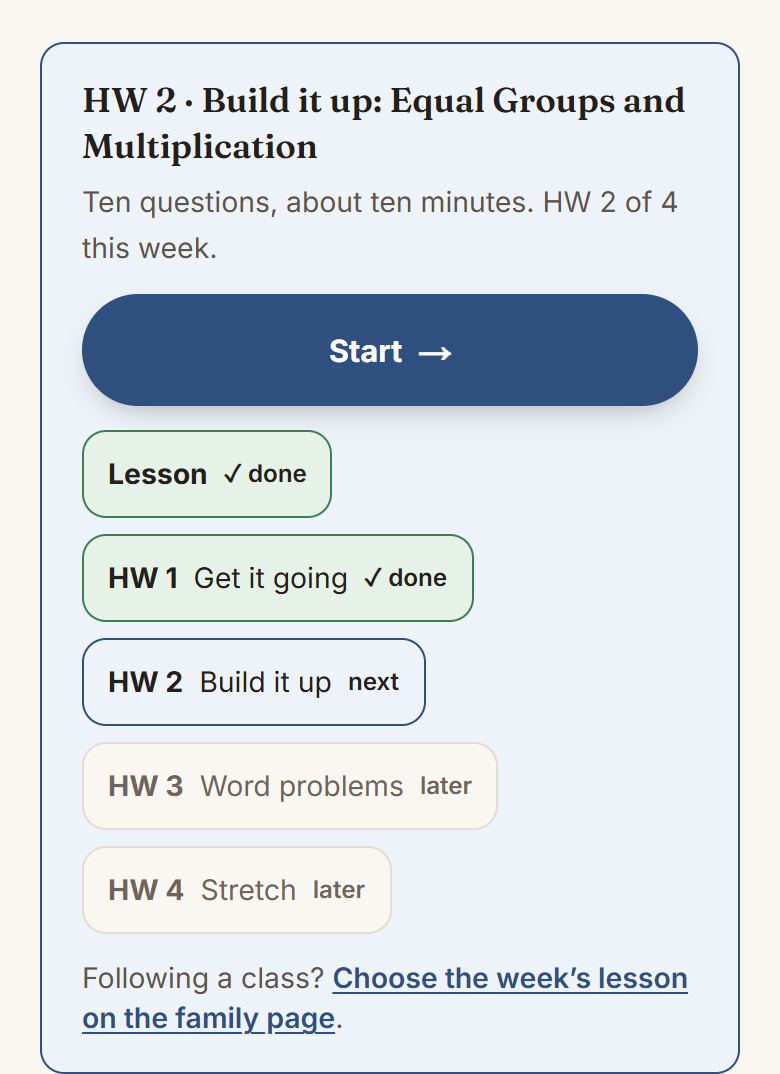
First comes a single panel headed Today for and your child’s name, with the one thing to do next. It answers one question, and it never offers two. While it gets the day ready it says Getting today ready… for a moment.
- A lesson left part-way is always the headline: Carry on, with where they stopped.
- Otherwise, whichever homework is open today, with how long it takes. Underneath are the five slips of the week, so you can see at a glance what is done and what is next. This week explains them.
- Today’s homework done, or the whole week done: a tick and what tomorrow brings. Never one more. With no week running, Today’s five takes its place.
- Nothing started at all: the first lesson of your child’s grade, with Open the lesson, and a line that says Not sure where to start? Find where to start.
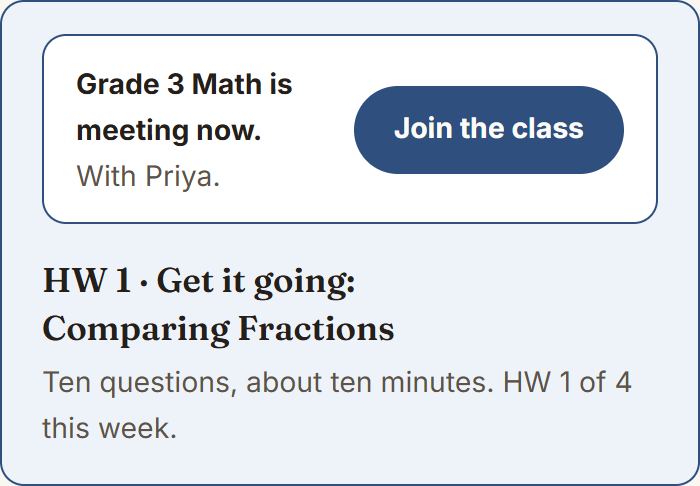
If your child is in a class, the class sits above all of that for the hour it is meeting, with a button that opens it. On every other day it is one quiet line saying when the class next is.
9. For grown-ups
Under Today, a small heading, For grown-ups, gathers the things only you need to answer. Each shows only until you have answered it, and once they are all answered the heading goes too.
- Add your child as a learner. Shown until you have added one. Add a learner goes to the learners page, which then offers the test that finds where to start.
- Hints for your child are on. What the helper’s hints are, and where the words go. Keep on or Turn off.
- New here? A short tour of the site, on video, for grown-ups. Watch the tour plays it; No thanks, hide this puts it away. The guide’s contents page can bring it back.
- Outside the United States? Shown once, if your device is set to a country outside the United States. Use levels or Keep grades.
10. All courses
Below Today is every course, the same list as the All courses page, with the View as switch for grades or levels above it. Your child’s own course is marked Your course. Tap a card and the course opens.
What next
The course list is worth a chapter of its own, and that is the next one.